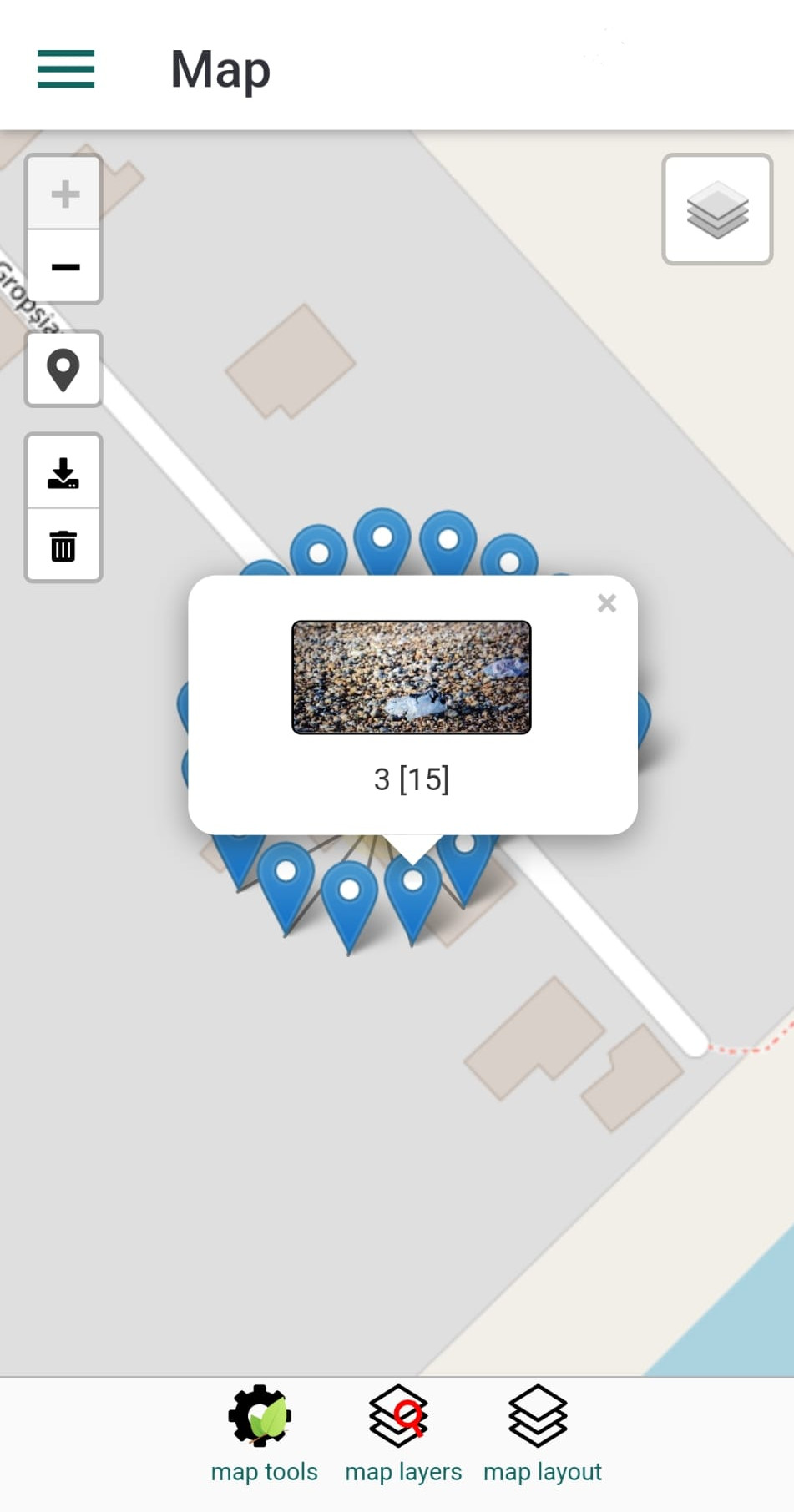
This panel allows you to view the observations that have been recorded — but only for those that include geographical coordinates.
Observations are displayed as markers on the map. Tapping a marker will open a popup showing details about the corresponding observation.
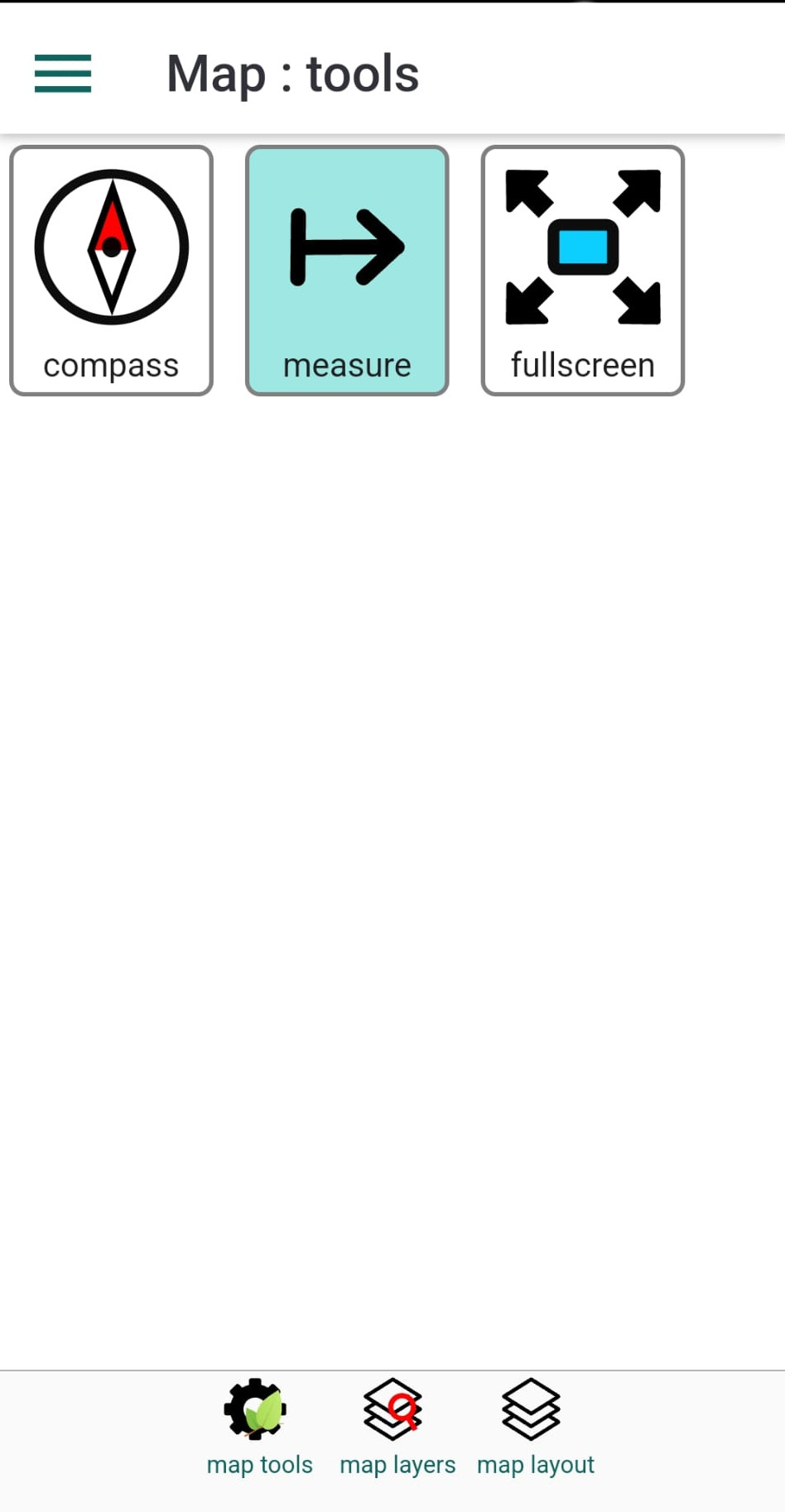
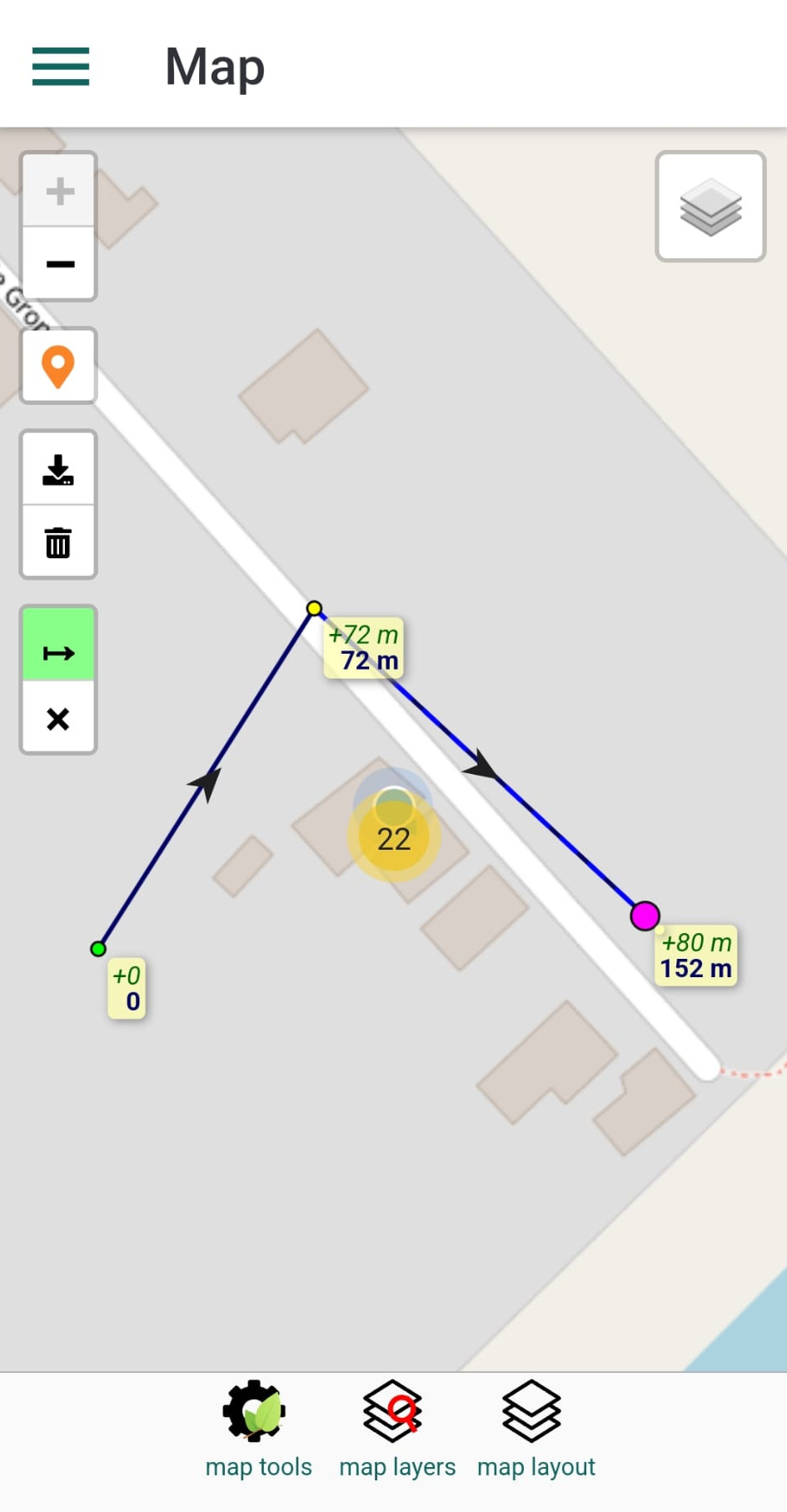
Map tools button from the bottom toolbar opens a panel with extra map tools. For example you can load a tool for measuring distances.
Map layers button from the bottom toolbar opens a panel that allows you to add polygon features to map; the features are displayed in expandable folders and are mainly limits of protected areas. When selecting a polygon, this will be automatically added to map layout. A second tap on a selected polygon would remove it from map and the map layot
Map layout button from the bottom toolbar opens a panel that allows you to see the selection of polygons. You can tap on items to toggle their visibility
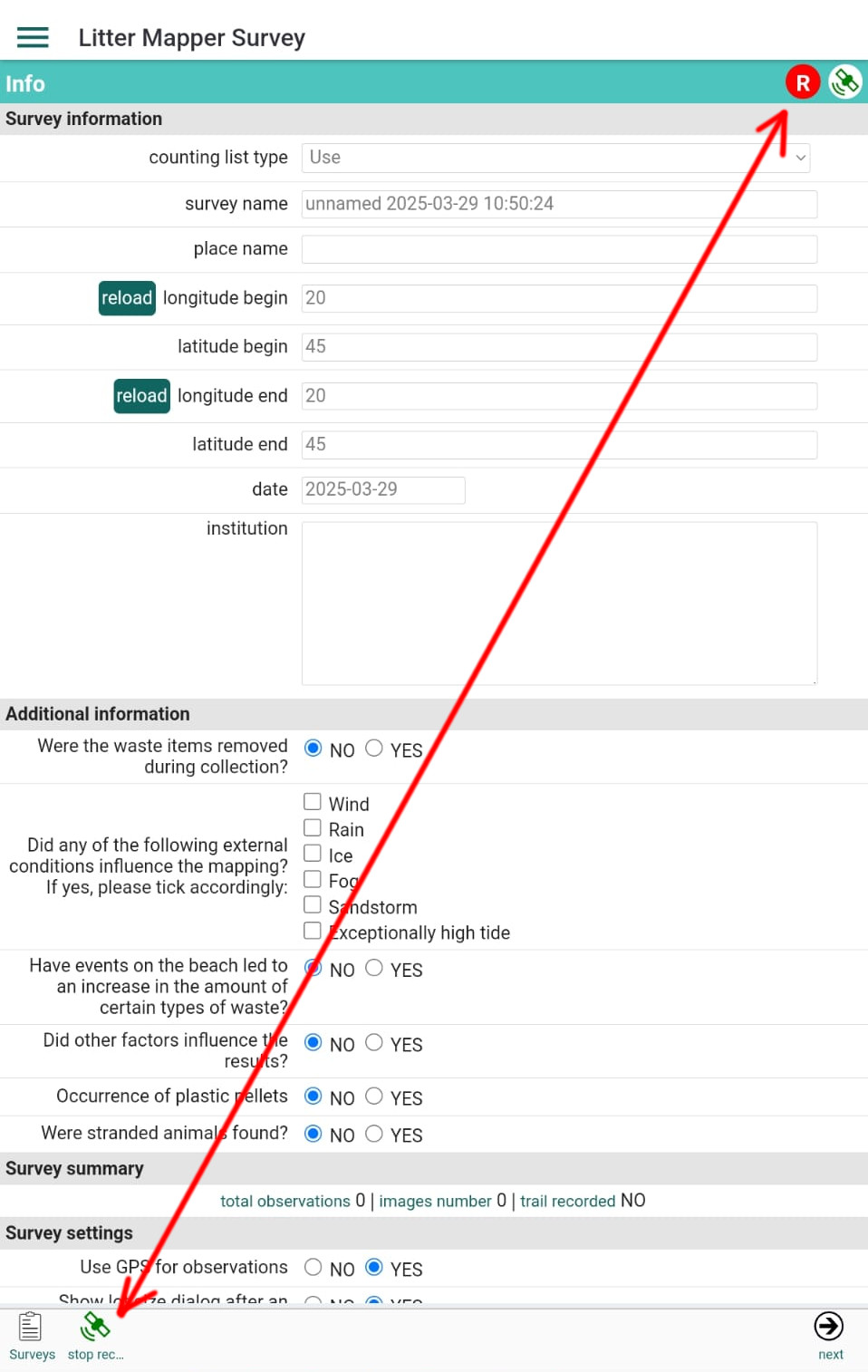
LitterMapper can also record your trail during a survey. To enable this, tap the GPS button labeled Record Trail located in the bottom toolbar of the Survey Info panel.
While trail recording is active, a red circle labeled with a capital R will appear near the GPS status icon in the title bar. You can start and stop trail recording at any time — each segment will be stored in the same GPX file. Please refer to the Settings panel to configure the GPS parameters as needed.
The GPX file is automatically associated with the current survey and is uploaded to the server together with your images and survey data.